AD RMS Protection (Available in Foxit Reader MSI Package Only)
Foxit Reader integrates RMS plugin in the software to extend the access control of Microsoft Windows Server® AD RMS on client systems. Foxit Reader (EXE) only allows users to open PDF files protected by AD RMS Protector, while Foxit Reader (MSI) supports more functions. Foxit Reader (MSI) not only can open and decrypt RMS protected documents, but also offers document protection with RMS Protector.
Foxit Reader (EXE) allows users to open RMS protected documents, but an evaluation watermark is displayed in the documents.
For Foxit Reader (MSI), a paid license is required for RMS function. You will be offered a 14-day trial, after that, you will be required to purchase a RMS license for further use. With Foxit Reader (MSI), you can view RMS protected documents without evaluation watermarks displayed in the documents.
Microsoft Windows Rights Management Services is an information technology that works with AD RMS enabled applications to help safeguard digital information from unauthorized use. Users can restrict others users from being able to open, read, modify, or redistribute certain information. Foxit Reader RMS protector provides seamless integration with Microsoft Windows Rights Management Services to protect PDF documents and manage policy templates. With Foxit Reader (MSI), you can use RMS-protected documents if you are authorized, to improve information security, meet compliance requirements, save time and money, and at the same time improve business processes. To meet the needs of more users, Foxit Reader (MSI) is also compliant with Microsoft® AD RMS 2.1.
Once installed, Foxit Reader (MSI) will extend all Microsoft AD RMS services to all PDF files.
Note: If you open a PDF that is encrypted with the AD RMS feature of Foxit Reader (MSI) in another PDF program, a wrapper (which is actually a PDF page) will prompt you to download Foxit Reader in order to open that PDF.
How to Use Windows Azure AD Right Management (AAD RMS)
1. Enable Windows Azure AD Rights Management for your organization:
Download the Windows Azure AD Rights Management administration module (WindowsAzureADRightsManagementAdministration.exe) for Windows PowerShell here.
Located in the local folder where you downloaded and saved the Rights Management installer file, double-click the file WindowsAzureADRightsManagementAdministration.exe to launch installation of the Rights Management administration module.
Open Windows PowerShell.
Type the following commands:
ü Import-Module AADRM
ü Connect-AadrmService -Verbose
Enter your Office 365 credentials when prompted, for example“user@company.onmicrosoft.com”.
Type the following commands:
ü Enable-Aadrm
ü Disconnect-AadrmService
2. Install Active Directory Rights Management Service Client 2.1:
RMS Settings
You can specify the RMS settings before you encrypt PDFs or open a link within an RMS-protected PDF. To specify RMS settings , please follow the instructions below:
Go to File > Preferences > RMS Settings.
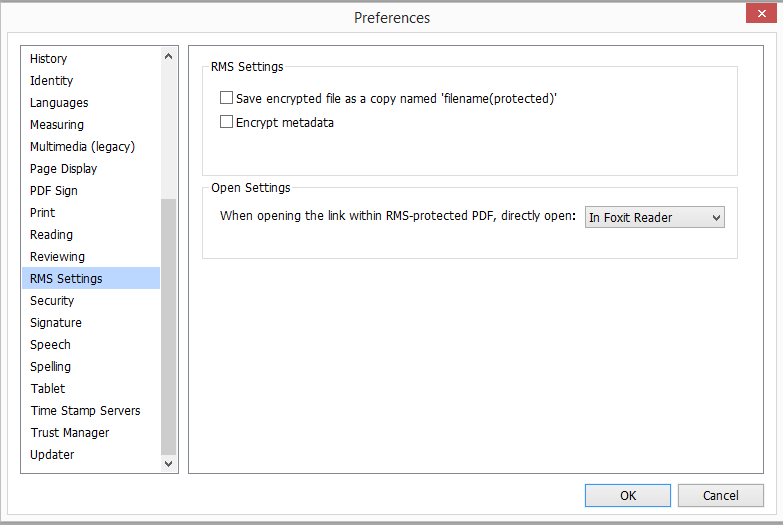
Save encrypted file as a copy named “filename(protected)”: Save the encrypted file as a copy named ‘filename (protected).pdf’ after adding RMS encryption to the file.
Encrypt metadata: Check the box to encrypt metadata when encrypting PDF documents.
Open Settings: Choose how to open the link within an RMS-protected PDF, in Foxit Reader or in your browser.
RMS Encryption
1. Go to Protect > Restricted Access.
2. Choose the template you want. If you have more than one server, first move the cursor to the name of the server, and then the templates on this server will be shown on the submenu. Click Refresh Templates to get the latest official templates from the server. You also can create custom templates. For more detailed information, please refer to Template Creation.
3. If you do not want to use the template, please click Restricted Access.
Type your account name and password when you login to the RMS server for the first time.
Click the icon
 to add the users you want to authorize reading permission to. To authorize anyone to read this file, select the icon
  on the right side.
(If you have an Outlook Email Client, the contact list of Outlook will pop up when you click the icon . You can choose the email addresses directly. You can also just type certain letters included in the email address, and then click the icon
 . The system will help you enter the complete address according to the contact list. Then you can go to the More Option Step.)

Choose the object types (users or group) and the server. Then type the e-mail addresses of the authorized users into the text box or click Advanced to open the e-mail address list on the server to choose an address directly.


Click OK to exit Select Users or Groups dialog.
Click More Options in Permission Dialog. The users you selected now will be shown on the text box. You can add or delete users as desired.

Additional permissions for users:
This document expires on: check it to set the expiration date. The document cannot be opened after the specified date.
Print Content: check this option to allow the users above to print the PDF files.
Allow users with read access to copy content: enable the users who only have read permission to copy content.
Allow users with read access to comment and fill form fields: enable the users who only have Read permission to add comments and fill form fields.
Access content programmatically: enable users to run JavaScript in the document.
Extended Policy: complete PDF protection and control of document usage. The policy will allow document owners to control the following items:
Only allow access to these pages: specify the page number(s) that a user is allowed to access.
Only allow access by this IP range: specify an IP range that is allowed to access a document.
Number of accesses: specify the number of times that a user is allowed to access a document.
Number of prints: specify the number of times that a user is allowed to print a document.

Note: To specify the “Number of accesses” and “Number of prints” items in an on-premise environment, please refer to  Web Service Configuration.pdf to configure the web service and SQL first, and then enable the extended policy with the Foxit Configuration Tool.
Additional settings:
User can request additional permissions from: if users want to apply for any permissions, the application will open the email client and list the email address you typed into the text in the Recipient's Address automatically. You can type a URL as well.
Require a connection to verify a user’s permission: check this option to let users verify their license every time they open the encrypted file.
Security Watermark: add a security watermark to the PDF files. For the detailed instructions, please refer to Security Watermark Management.
Set Default: set the additional settings as default.
Save as template: the security setting set above can be saved as a template for further use.
4. If users need to request additional permissions for a PDF file, please do the following:
Open the file and choose File > Properties > Security.
At the bottom of the Security tab, click Request additional permissions ….

Note: Foxit Reader (MSI) also supports Microsoft IRM Specification V1, V2, and PPDF, of which Microsoft IRM Specification V2 is the default format when you encrypt PDFs with RMS. The encryption policy of Microsoft IRM Protection does not include dynamic watermark, extended policy, and dynamic revocation. To change the default Microsoft IRM format, do the following:
1. Type regedit.exe in the Run window or in the search box of the Start menu and navigate to the following path: HKEY_LOCAL_MACHINE\SOFTWARE\Policies\Foxit\Reader\RMS\Preferences.
2. Create a new REG_DWORD 32 value: Name: UseMicrosoftIRMV1.
3. Use the responding value to set the format as default as below.
V1: 1
V2: 2
PPDF: 3
Foxit Configuration Tool
Foxit Reader RMS protector provides a handy configuration tool for administrators to better modify the protection settings on a RMS server. Administrators can directly enable/disable each tool, edit the extended policies of official templates, dynamically revoke permissions, audit logs, set valid network printers, and customize wrapper files.
To use the configuration tool to encrypt PDFs, please do the following:
Log in to your RMS server.
Download the Foxit Configuration Tool from:
For X86:
http://cdn01.foxitsoftware.com/pub/foxit/rms/configtool/8.x/FoxitConfigurationTool_32.zip
For X64:
http://cdn01.foxitsoftware.com/pub/foxit/rms/configtool/8.x/FoxitConfigurationTool_64.zip
Unzip and Run Foxit Configuration Tool, you can then use the different tools in the Foxit Configuration Tool window. Note: Before getting started, you need to configure the VBScript in the unzipped folder by inputting your specific localhost address and port number in the script. The default port number in the script is 80, such as admin_role = config_manager.Initialize(true,"localhost",80,"","",""). You need to change the port number to the one your server currently uses.

Foxit Configuration Tool Window
Template Extended Policy
With the Foxit Configuration Tool, administrators can easily edit the extended policy of official templates. Click Template Extended Policy tool and choose one template to edit. See also Extended Policy.

Tip: Click the Back  button in the left corner to return to the Foxit Configuration Tool window.
Dynamic Revocation
Revocation is a mechanism that revokes a PDF document that has already been issued. A common use of revocation is to remove rights from an individual when he is no longer authorized or to restrict access to a document when it becomes out of date or invalid.
Note: To revoke a PDF document/user in an on-premise environment, please refer to  Web Service Configuration.pdf to configure the web service and SQL first. Then choose the Revocation tool in the Foxit Configuration Tool window and enable the tool by clicking the button
 .
.
To revoke a PDF document, click Document Revocation. Select the PDF document you want to revoke, click the Add button to add the document to the Revocation List. Or you can click Browse to select a document from a local drive to add to the Revocation List. To remove the revocation, please select the document in the Revocation List and click the Remove button.

To revoke a user, click User Revocation. Click Add button to add a user to the User Revocation List. To remove the revocation, please select the user in the list and click Remove button.

Extended Policy
Foxit Configuration Tool provides you with Extended Policy to add complete PDF protection and control to your PDF documents. The policy allows documents owners to control the number of access and the number of prints in an on-premise environment. Before you specify the two permissions, please refer to Web Service Configuration.pdf to configure the web service and SQL first, and then choose the Extended Policy tool in the Foxit Configuration Tool window and enable the tool by clicking the button
 .
.

Auditing Logs
Foxit Reader (MSI) enables you to track the usage of RMS protected files to record the actions on the files during workflow, including who accessed the document, what document was accessed, when it was accessed, how it was accessed and the success of that access, and more.
To audit logs, please refer to  Web Service Configuration.pdf to configure the web service and SQL first, and then choose the Audit Log tool in the Foxit Configuration Tool window and enable the tool by clicking the button
 .
.

Choose one log and click on the Export button to export to Foxit Reader’s registry or Foxit PhantomPDF’s to generate a .reg file for the administrator’s configuration. The administrator can distribute the .reg file to client-end computers.
Restrict Local Printing
You can also set the printing permissions by specifying certain network printers to protect the sensitive information from being printed arbitrarily.
² Network Printers Configuration
To avoid unauthorized printing of sensitive documents, you can limit the printing permissions to certain network printers. To configure network printers, please refer to Web Service Configuration.pdf to configure the web service and SQL first, and then click the Valid Network Printer Setting tool and in the “Foxit Configuration Tool” window click the button
  to enable this tool.

1. You should get the Printer Port first. Please go to Start > Devices and Printers > right-click a network printer > Printer Properties. In the printer properties dialog box, select the Ports tab and get the information, e.g.: “IP_192.168.3.239” is the printer port.

2. Click Add button in the “Foxit Configuration Tool” dialog box to add the Printer Port. You can also remove a printer port by choosing it and clicking Remove.
Note: About how to add a network printer, please see “Add a Network Printer”.
Add a Network Printer
There are two devices to add a network printer as below:
Go to Start > Devices and Printers > Click Add a printer. In the Add Printer dialog box, click The printer that I want isn’t listed to go on to the next step.

Follow the instructions shown in the Add Printer dialog box shown below to complete adding a printer.

Open the Run box by pressing shortcut keys Win + R, enter the printer URL you want to add and click OK.

In the pop-up dialog box, right-click the printer and choose connect on the context menu.

Edit Wrapper Content
If you open a PDF which is encrypted by Foxit with other PDF viewers, a wrapper (which is a PDF page) appears with a prompt that you need to download Foxit Reader/PhantomPDF to open the encrypted PDF. With Foxit Configuration Tool, you can customize the wrapper by selecting a desired PDF file.
To apply a custom wrapper, please refer to  Web Service Configuration.pdf to configure the web service and SQL first. Then choose the Edit Wrapper Content tool in the Foxit Configuration Tool window, enable the tool by clicking the button
  , and select a desired PDF file.
