Foxit PDF Reader Mobile provides multiple ways to help you navigate and find content:
- Switch between Files
- Navigate through a PDF File
- Jump to a Specific Chapter with Outline
- Jump to a Specific Page
- Jump to a Designated Location with Link
- Search and Find Text
Switch between Files
- On tablets, all the files you have opened will be displayed in tabs. You can tap the file tab to switch between files.
- On phones, you will see an icon with a number indicating the number of files you have opened on the toolbar at the top. To switch between the files, tap the icon
 , and choose the file you want to switch to. If you need to close an opened document and remove it from the opened files list, tap the close icon
  beside the file name directly.
Navigate through a PDF file
Use the Gesture
Swipe up or down to scroll through a PDF file in Continuous mode. In Single Page mode, you can swipe left or right to turn pages.
When reading a PDF file in Single Page mode, you can also turn pages by a simple touch on anywhere along the left or right border on the document pane. Before that, please do the following in the Settings panel to enable page flipping by touch:
- Tap
 to open the Tool Selector;
 - Tap
 to open the Settings panel;
 - Find the Enable page flipping by touching on left/right border option under the PDF View group, and slide its toggle on.
Use the Volume Key
- Designate the volume key action as the page flipping button with the following steps:
- Tap to open the Tool Selector;
- Tap ;
- Tap Volume Key Action under the PDF View group, and select Page Flipping;
- Tap
- While reading a PDF file, you can press the volume up/down key to turn to the previous or next page.
Use the Mouse or Bluetooth Keyboard
- Use the mouse wheel to navigate through a PDF file.
- Use the up/down arrow key on the keyboard to scroll through a PDF file.
- Use the left/right arrow key on the keyboard to turn to the previous or next page.
Turn Pages Automatically
You can designate Foxit PDF Reader Mobile to turn pages automatically to get more convenient reading experience. Steps are as follow:
- On the document pane, tap
 ;
; - Scroll down to find more options, and tap Auto Flip;
- In the Auto Flip window, you can do the following:
- Tap
 or
or  to adjust the speed.
 - Tap
 to exit Auto Flip mode.
- Tap
Jump to a Specific Chapter with Outline
- On the document pane, tap
 to open the navigation panel;
 - Tap
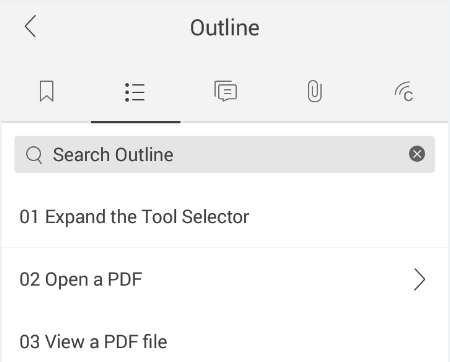
 on the navigation panel to open the outline pane;
 - Navigate through the outlines, or input keywords in the Search Outline field to search for specific outlines,and tap the outline to jump to the specific chapter.
- On the document pane, tap the page number indicator
 ;
; - Enter the page number in the dialog box;
- Tap GO.
- Tap
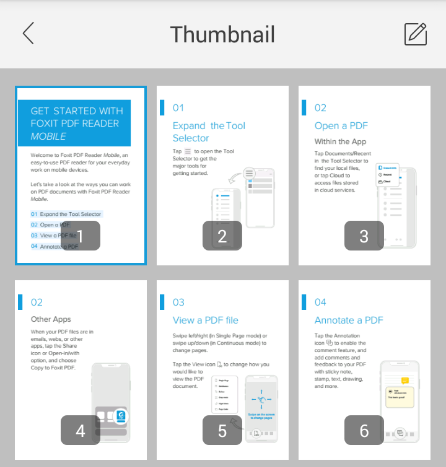
 on the toolbar on the top to open the page thumbnail window;
 - Tap on a page thumbnail to jump to the selected page.
- In the Thumbnail window, a blue rectangle will be shown on the thumbnail to indicate the current page. Before jumping to the specific page, you can tap
 to close the page thumbnail window.
 - If you want to organize the pages, tap
 on the toolbar at the top of the Thumbnail window. Please refer to "Organize PDF Pages" for details.
 - On the document pane, tap to open the navigation panel;
- Tap
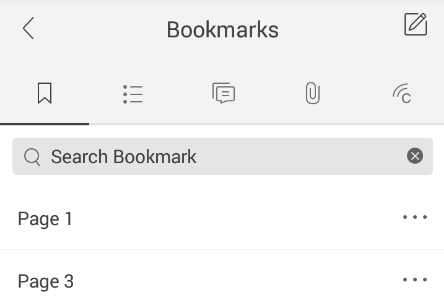
 on the navigation panel to open the bookmark pane;
 - Navigate through the bookmarks, or input keywords in the Search Bookmark field to search for specific bookmarks, and tap the bookmark to jump to the specific page.
- Tap to open the Tool Selector;
- Tap ;
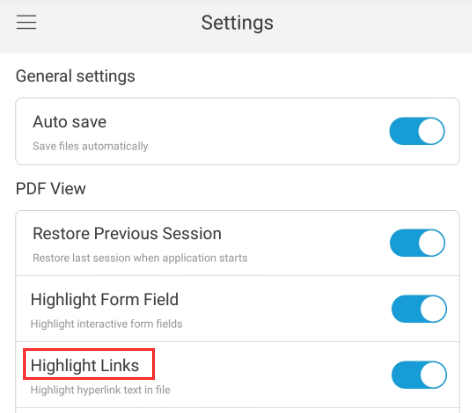
- Find Highlight Links under the PDF View group, and slide the toggle on.
- Tap
 on the toolbar on the top;
 - Input the text in the search box;
- Tap Search;
- Tap
 or
or  to jump to the previous or next search results;
 - Tap
 to display the search results;
 - Tap CANCEL to cancel the search.
Jump to a Specific Page
Jump to a Specific Page with Page Number
Tip: If a PDF file contains logical page numbers, Foxit PDF Reader Mobile can display the logical page number on the page number indicator. You can input the corresponding physical page number to jump to the specific page.
Jump to a Specific Page with Page Thumbnail
Tips:
Jump to a Specific Page with Bookmark
If you have saved pages as bookmarks, you can jump to that specific page by selecting the bookmark. Steps are as follows:
Tip: If you want to bookmark a page, tap  on the toolbar on the document pane. For existing bookmarks, you can tap
  beside the bookmark in the Bookmarks panel, and choose Rename or Delete to rename or delete it, if necessary. Tapping the Edit icon on the top right corner of the bookmark pane will allow you to delete multiple bookmarks or remove all bookmarks from the document.
Jump to a Designated Location or Open a Designated Document with Link
If the PDF file contains links, you can tap the link directly to jump to the designated location in the current document or website.
If the PDF file contains links to documents, you can tap the link directly to open the document in Foxit PDF Reader Mobile or other supported application on your mobile device if the linked documents are saved in the same directory of the PDF file.
You can highlight the hyperlinks in PDF files for easy recognition with the following steps: