Summarize comments in PDF
Summarizing comments is an easy way to help you directly obtain a synopsis of comments associated with the PDF. The application supports to create a comment summary PDF. To create a comment summary, do as below:
1. Choose Comment > Summarize Comments.
2. In Create Comment Summary dialog box, do the following:
A. Choose the layout of the summary and there are five types of layouts for you to choose:
L1-- Document and comment with connector lines on separate pages
L2-- Document and comment with connector lines on single pages
L3-- Comments only
L4-- Document and comment with sequence numbers on separate pages
L5-- Document and comment with sequence numbers on single pages
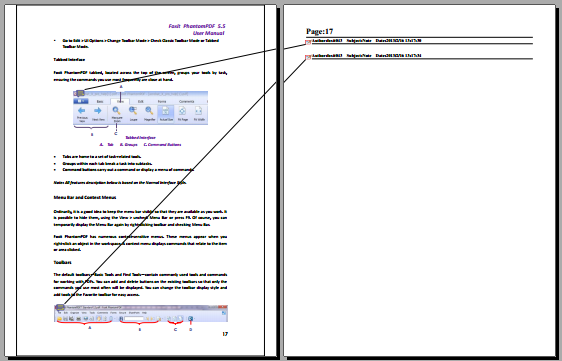
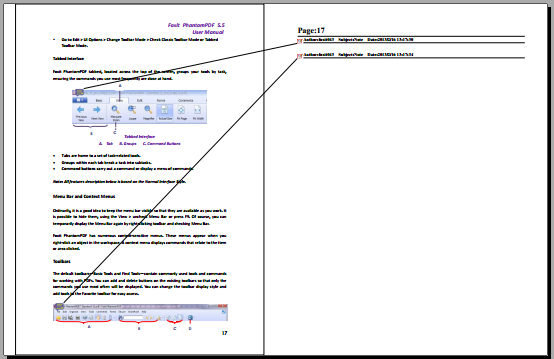
L1 L2
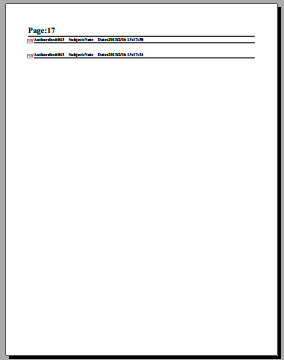
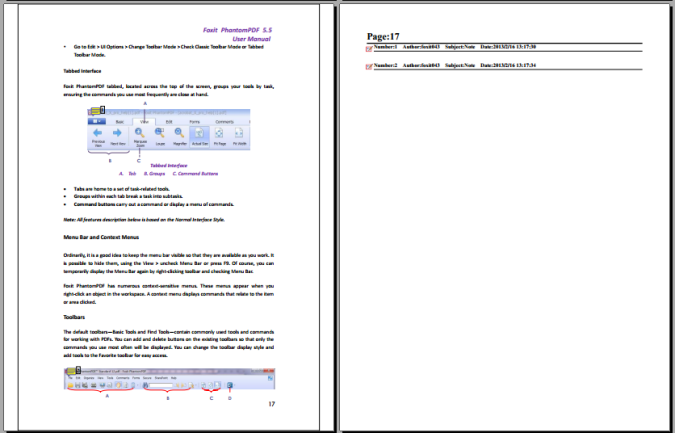
L3 L4
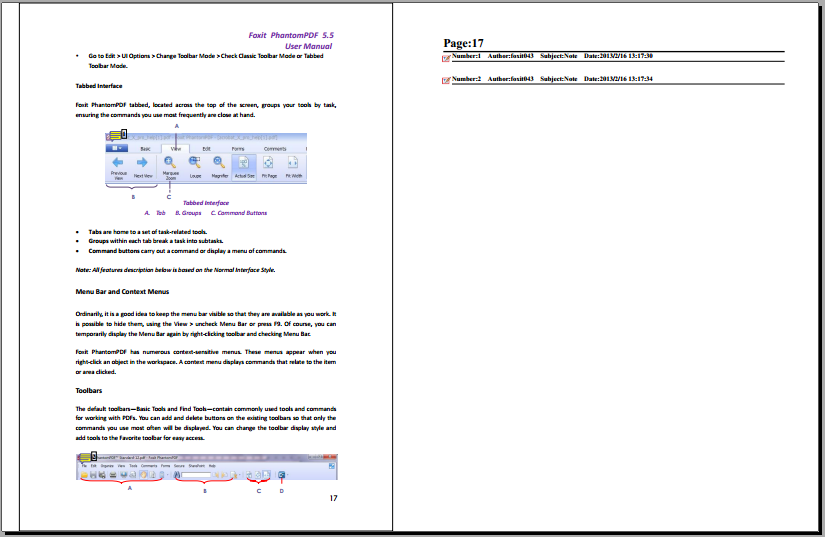
L5
B. Comment Type - Choose the comment type you want to summarize.
C. Paper Size-Select the paper size of the summary
D. Font Size - Select the font size of the summary.
E. Sort comments by – Choose how to sort the comments.
F. Include pages– Specify the page range you need to summarize.
3. Click OK and a PDF named “Summary of Comments on [original document name].pdf” will be opened automatically. You can rename it before you save.